


AdBlock for Samsung Browser
3.51.08K Reviews
App Specs
- Version
- 3.4.7
- Updated On
- License
- Free
- Downloads
- 10,000,000+
- Developer
- Adblock, Inc.
- Categories
- Productivity
- Platform
- Android, iOS
Screenshots
 Analysis by AppCompare
If you’re trying an ad blocker for the first time, the most important thing to know is that this one is tied to a particular browser. AdBlock for Samsung Browser is a free productivity app from Adblock, Inc., made for people who browse with Samsung Browser and want fewer advertising interruptions there. It isn’t a general-purpose blocker for every app on your phone, so the first step to a useful result is making sure you use the browser it’s intended to support.
Know what it can—and cannot—change
I’d approach it as a browser companion, not a phone-wide cleanup tool. Its purpose is to reduce ads while you browse in Samsung Browser; it won’t make ads disappear from unrelated apps or automatically change what you see in another browser. That distinction matters if you mainly read news in one app, follow links through a social app’s built-in browser, or have already settled on a different browser.
The app has a 3.5 average from around 25,000 ratings, and it has passed 10 million installs. Those figures suggest plenty of people have tried it, but they don’t guarantee that every site will behave the same way on your device. I’d judge it by a few pages you actually use rather than expecting a perfect, identical result everywhere.
Make the first setup a small, deliberate test
After installing it from Google Play, open the app and follow the prompts it presents for working with Samsung Browser. The exact screens can change, so I wouldn’t rely on a fixed tap-by-tap walkthrough; instead, look for the control or instruction that enables blocking, and make sure you complete any browser-side step it asks for. Then open Samsung Browser itself and visit a familiar page. That last check is more useful than simply seeing the app installed: installation alone does not tell you whether the browser is using it.
If you’re on the fence about trying it, the app is free, rated for Everyone, and lists Android 5.0 as its minimum operating system. Its current version is 3.4.7. I’d still check that Samsung Browser is available and working on your phone before spending time setting up a tool that is specifically built around it.
Choose a page that makes success obvious
For the first test, use a page where you already know what the ad clutter looks like. A busy article page is often easier to compare than a clean homepage: notice whether banners or other advertising spaces are reduced, whether the main text remains readable, and whether the page still responds normally when you scroll. This gives you a practical baseline without needing technical knowledge or special testing tools.
Try the same page again with blocking switched off and then back on, if the app offers that control. Comparing the two states helps you work out whether a change came from the blocker or whether the site simply loaded differently. If nothing appears to change, check that you’re in Samsung Browser and revisit the setup instructions before assuming the app is broken.
Worth Reading Before You Choose

Flipboard Shows What News Apps Must Do Beyond the Feed

Switching to Android Auto Means Rethinking Your Driving Routine

Google Calendar Makes a Crowded Week Easier to Manage

Ludo King Makes the Most of the Minutes Between Plans

Baby Panda World Brings Quick Play to Modern Phones, but Its Game Library Feels Busy

ESPN’s Live Game View Makes Following Close Games Easier
When a page looks wrong, troubleshoot gently
Some websites depend on scripts or page elements that can also be affected by content blocking. If a video, sign-in flow, menu, or other important part stops working, don’t assume every blocker setting should stay enabled at all costs. Try switching blocking off briefly to see whether the page works again, then turn it back on after you’ve finished. That simple comparison can help you identify whether blocking is involved without changing several things at once.
A page may also show an empty space where an ad used to be, or continue to display an ad that the blocker hasn’t caught. Either result is a reminder that ad blocking is not the same as redesigning a website, and filters can differ in what they catch. If a particular site matters to you, prioritize whether its article, checkout, or playback works correctly over whether every blank area disappears.
What is AdBlock for Samsung Browser?
Let’s kick things off with what AdBlock for Samsung Browser actually does. In a nutshell, it’s your digital shield against ads. Whether you’re scrolling through news articles or streaming your favorite shows, this app’s got your back. It’s specifically designed for the Samsung Browser, which means it’s optimized to work smoothly without any hiccups.
Getting Started
So, how do you set it up? Well, it’s super straightforward. Head over to the Google Play Store, download the app, and you’re almost there. Once installed, the app integrates seamlessly with your Samsung Browser. You don’t need to be a tech wizard to get it running. Just a few taps, and you’re good to go!
Features Galore
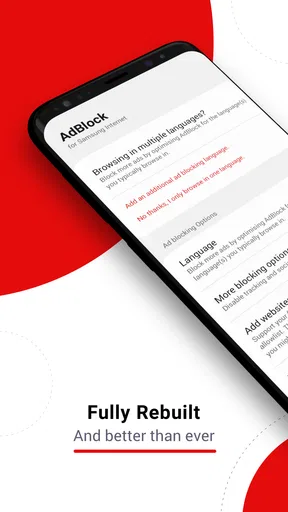
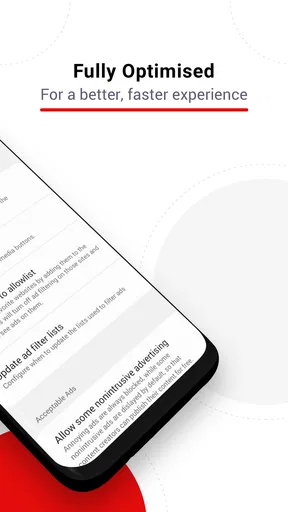
Let’s talk features. One thing I absolutely love about this app is its simplicity. You don’t get bombarded with too many options. Instead, you get a clean, user-friendly interface that lets you toggle ad-blocking on and off effortlessly. But don’t let the simplicity fool you; it’s packed with power under the hood.
The app not only blocks ads but also speeds up your browsing experience. Without those annoying pop-ups and banners, pages load faster, and you end up saving on data. It’s like getting a two-for-one deal!
Privacy Matters
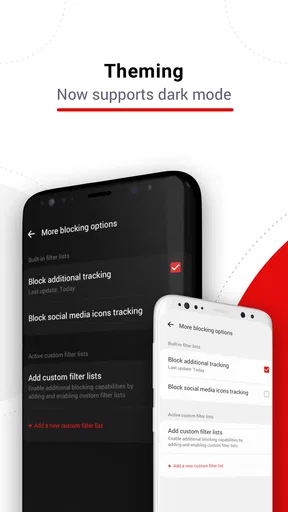
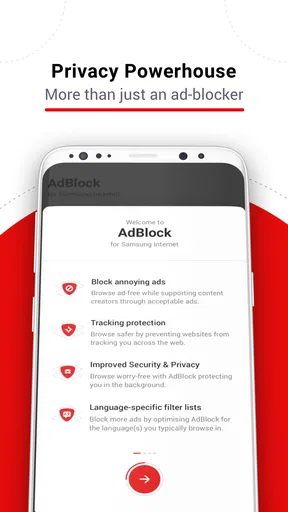
In today’s digital age, privacy is a big deal. AdBlock for Samsung Browser takes this seriously. It doesn’t just stop at blocking ads; it also prevents trackers from snooping around your browsing habits. You can surf the web knowing your privacy is protected.
Performance on Different Sites
Now, let’s chat about the app’s performance across different sites. I’ve tested it on a variety of platforms, from news websites to video streaming services, and it performs like a champ. Ads that would typically clutter the screen are nowhere to be found. The app handles it all without breaking a sweat.
Easy on the Battery
I’ve used ad blockers in the past that drain my battery faster than a kid on Halloween candy. Luckily, that’s not the case here. This app is designed to be light on your phone’s resources, so you won’t notice a significant dip in battery life. It’s efficient and effective—a rare combo!
Regular Updates
Another thing worth mentioning is that the developers behind this app are on the ball with updates. They’re constantly improving the app and squashing bugs, ensuring you always have the best ad-blocking experience possible. It’s refreshing to see an app that doesn’t get abandoned after launch.
Final Thoughts
If you’re using the Samsung Browser and want a hassle-free way to block ads, AdBlock for Samsung Browser is a must-have. It’s easy to install, simple to use, and incredibly effective. Plus, the added privacy protection is a huge bonus. Say goodbye to annoying ads and hello to smooth browsing!
So, what are you waiting for? Give it a try and enjoy an ad-free browsing experience. Trust me, once you start using it, you’ll wonder how you ever surfed the web without it.
A realistic day-to-day use
Imagine checking a long news story during a commute, then returning to the same tab later on a limited mobile connection. If the page contains many ads, reducing them can make the reading area feel less crowded and may avoid loading some advertising content. I’d still keep expectations sensible: the amount of data saved depends on the page, and a blocker can’t make a slow connection fast or remove every element a site chooses to show.
This is where the app makes the most sense to me: as a quiet helper for repeated browsing habits. If you regularly read articles, look up recipes while cooking, or browse reference pages in Samsung Browser, less visual clutter can make those sessions easier to follow. It is less compelling if you only open the browser occasionally or most of your web use happens inside other apps.
How it compares with other ways to browse
The usual alternative is to keep using a browser without a separate blocking companion, accepting the site’s ads as they appear. That takes no setup, but it can leave busy pages harder to read. Another option is switching to a browser with its own content controls. That may be a better fit if you want one browser to handle everything, but it also means changing your habits, bookmarks, and preferred interface.
I’d choose this app when Samsung Browser is already the browser I like and I want a focused way to reduce advertising there. I’d skip it if I expect one install to block ads across games, video apps, and every browser on the phone. Keeping the existing browser is the convenient part; the trade-off is that the benefit stays within its intended browsing context.
Use the toggle as a practical tool
Rather than treating blocking as an all-or-nothing setting, I find it useful to think of the toggle as a troubleshooting choice. If a page’s controls disappear or a site asks you to disable blocking, switch it off for that task, complete what you need, and then restore your usual setting. This is especially handy for forms and pages where a button or embedded feature matters more than a perfectly uncluttered view.
It also helps to compare more than one kind of page before deciding whether the app suits you. Try an article, a page with video, and a site you use for a practical task. A result on one site does not predict every other site, and a blocker that improves reading might still need to be paused for a particular interactive page.
What to expect from privacy and performance
Ad blocking and privacy protection are related, but they are not a promise of complete anonymity. The app is described as blocking trackers as well as ads, which can reduce some forms of tracking in the browser; it should not be treated as a replacement for careful account settings or a guarantee that no browsing activity is observed. I would use it as one layer of a more thoughtful browsing routine, not as a reason to share sensitive information casually.
Likewise, fewer ads can mean less material to load, which may help pages feel quicker and use less data, but the effect will vary with the site and connection. If speed is your main concern, compare the same page under similar conditions instead of judging from a single visit. That keeps the decision grounded in your own routine rather than a broad promise.
Who will get the most from it
I’d recommend giving it a try if you use Samsung Browser regularly, read ad-heavy sites, and want an uncomplicated control rather than a long list of settings. It is particularly approachable for someone who has never installed a blocker: install it, complete the prompts, and judge it on a page they know. Its Everyone content rating also makes the intended audience broad, though the app’s usefulness still depends on the browser you use.
If you need broad controls across multiple browsers, want to manage blocking in other apps, or depend on a site that breaks when content is filtered, this is probably not the right tool by itself. A browser with built-in controls or simply leaving blocking off for that specific site may be more practical. My recommendation is modest but clear: use it when its Samsung Browser focus matches your habits, and don’t force it into a role it was not designed for.
Pros
- Blocks intrusive ads effortlessly.
- Enhances browsing speed significantly.
- Reduces data usage efficiently.
- Improves battery life during use.
- Provides a clutter-free browsing experience.
Cons
- Limited compatibility to Samsung Browser.
- May block non-intrusive ads at times.
- Occasional website functionality issues.
- Setup can be confusing for some users.
- Not customizable for advanced users.
FAQs for AdBlock for Samsung Browser
What is AdBlock for Samsung Browser and how does it work?
AdBlock for Samsung Browser is a specialized extension designed to block intrusive ads, pop-ups, and trackers that can disrupt your browsing experience. It integrates seamlessly with the Samsung Internet Browser, allowing users to enjoy faster and cleaner browsing by eliminating unwanted content, thereby enhancing privacy and page loading speeds.
Is AdBlock for Samsung Browser free to use?
Yes, AdBlock for Samsung Browser is free to download and use. While it offers robust ad-blocking features at no cost, some extended features might be available through in-app purchases or subscriptions. Users can enjoy a comprehensive ad-free experience without any initial financial commitment.
Does AdBlock for Samsung Browser affect website functionality?
While AdBlock for Samsung Browser is designed to block only intrusive ads and trackers, some websites may rely heavily on ad revenue, which could affect their functionality. Users can whitelist specific sites to support them or customize blocking settings to ensure essential site features work seamlessly.
How can I install AdBlock for Samsung Browser on my device?
To install AdBlock for Samsung Browser, navigate to the Samsung Galaxy Store or Google Play Store on your device. Search for 'AdBlock for Samsung Browser,' download, and follow the on-screen instructions to enable it within your Samsung Internet Browser settings. This process ensures smooth integration and functionality.
Can AdBlock for Samsung Browser protect my privacy online?
Yes, AdBlock for Samsung Browser enhances online privacy by blocking trackers and preventing advertisers from collecting your data. By eliminating tracking mechanisms, it reduces the risk of targeted ads and helps maintain your anonymity while browsing, offering an added layer of security.


